The Posting Room Open planner

A little introduction

Make room for
your next idea.

A private planner for reels, carousels, and stories.

Somewhere for the half-written captions, ideas you don’t want to lose and posts you’re almost ready to share. Here’s how to find your way around.

Already invited or have an account? Sign in as usual. Got an early access code? Use it on the sign-in screen. Otherwise, join the waitlist and I’ll email you when your seat’s ready.

Week view with sample reels, carousels, and stories arranged by day
Your week, with a little breathing room.

Start here

You don’t need a whole content plan.

One idea is enough. After signing in, the welcome screens help you choose your formats, week start, rest days and tags. You can change these later in Settings.

  1. 01

    Save a thought

    Tap Ideas in the bottom bar. Add a title, a hook or a half-written thought. It can stay undated.

  2. 02

    Give it a day

    Use the idea’s calendar button to choose a date. Or add a fresh post from your Week or Month view.

  3. 03

    Make it yours

    Open the post. Add your caption, notes or media, then update its progress as you go.

A look around

Four places to put it all.

The screenshots show an example planner. Your account starts with your own empty space.

01 / Week

What’s happening this week?

See each day’s posts and where they’re up to. Blue is reels, gold is carousels and green is stories.

  • Tap Add post under a day to start something new.
  • Tap a post card to open it.
  • Press and hold a card, then drag it to another day. On a computer, click and drag.
  • Use the arrows to move between weeks and the bottom bar to switch to Month.
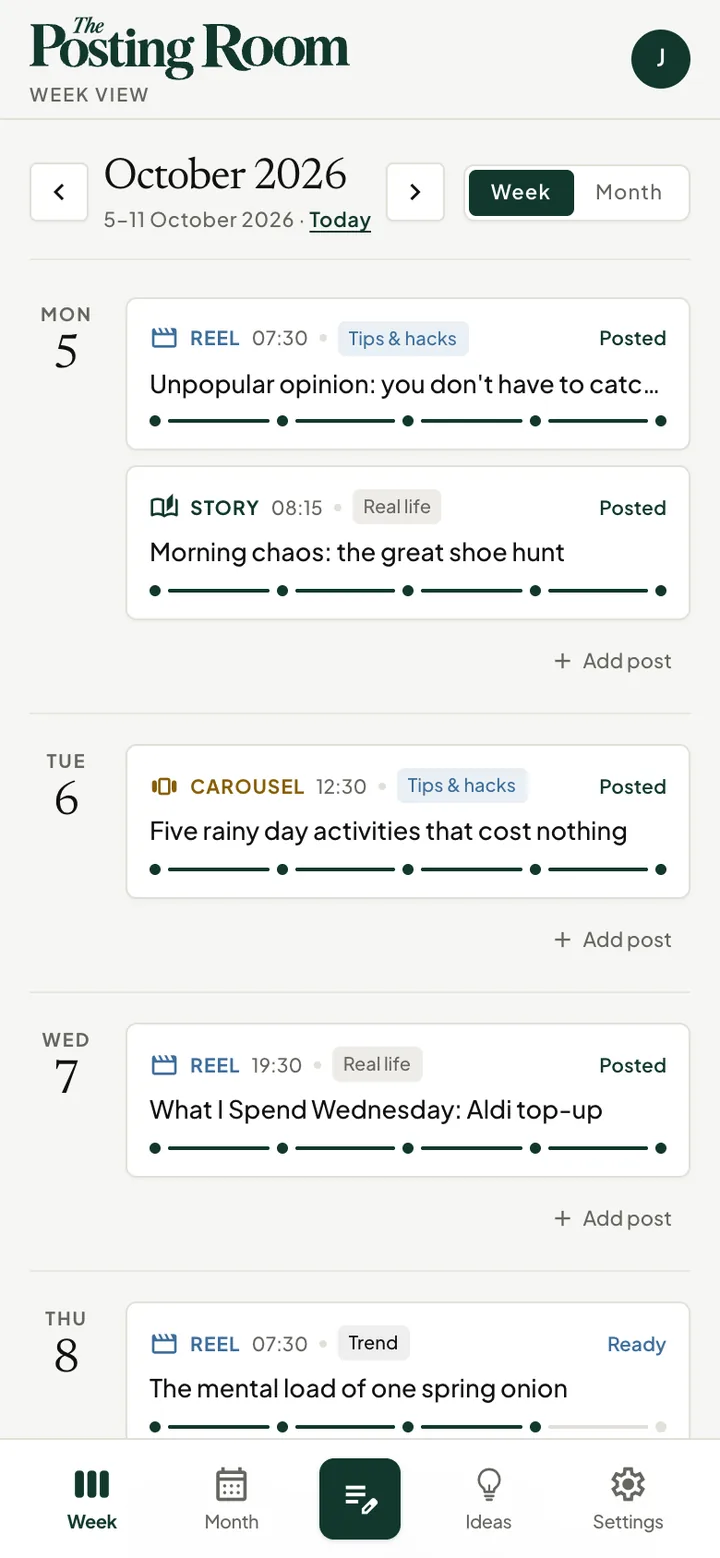
Example Week view, showing coloured post cards and their progress stages

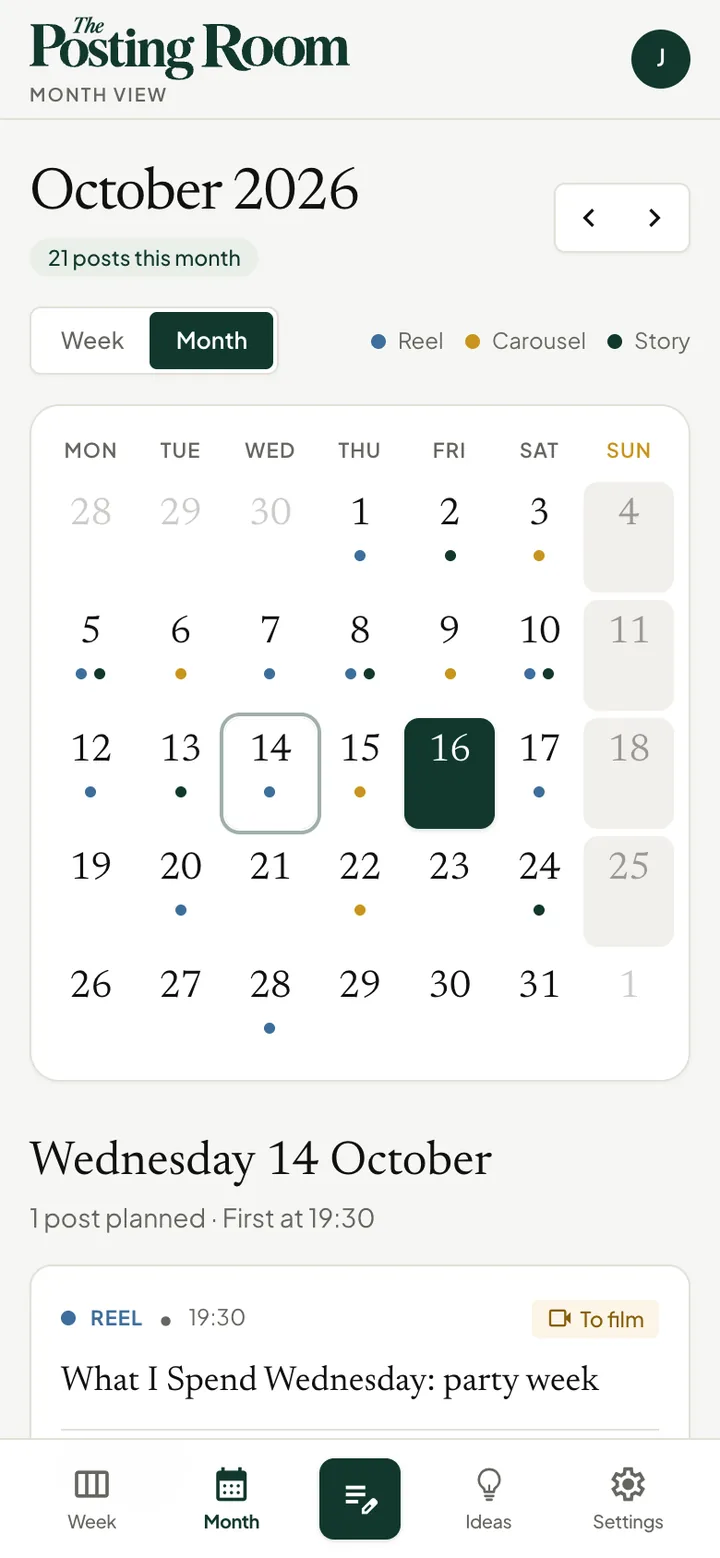
02 / Month

See a little further ahead.

A bigger view of your plans, without opening every day.

  • Tap a date to see that day’s posts beneath the calendar.
  • The coloured marks show which formats you’ve planned.
  • Add a post for the selected date, or open a card to edit it.
  • Shaded rest days are a reminder, not a rule. You can still plan a post on them.
Example Month view with dates, format markers and posts for the selected day

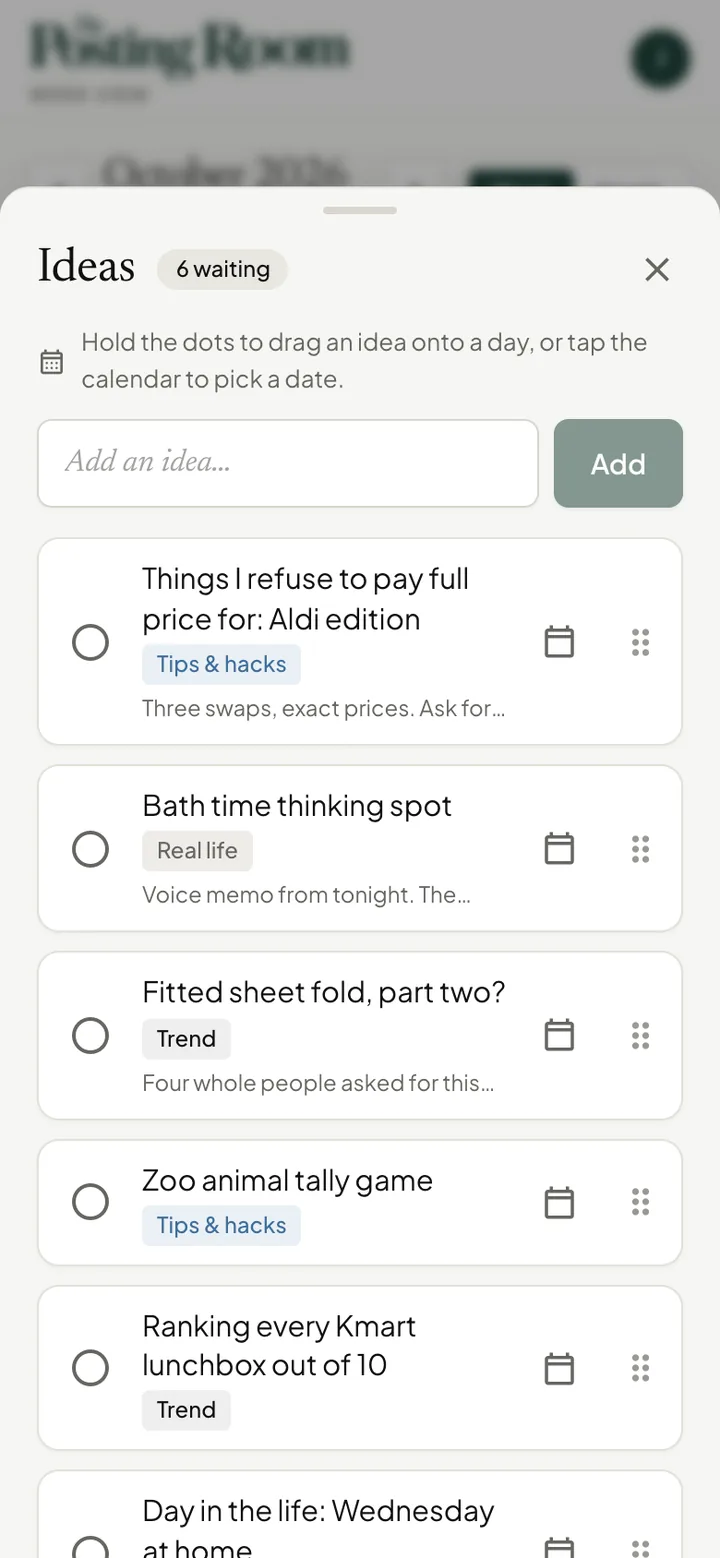
03 / Ideas

Not ready for a date? Put it here.

Tap Ideas in the bottom bar. This is for the posts you might make, even if all you have is a sentence.

  • Add an idea and keep its notes together.
  • You’ll choose Reel, Carousel or Story when you give it a date.
  • Use its calendar button when you’re ready to choose a date.
  • Or hold the dots and drag it onto a day in Week or Month.
Ideas panel with saved thoughts and calendar buttons for scheduling them

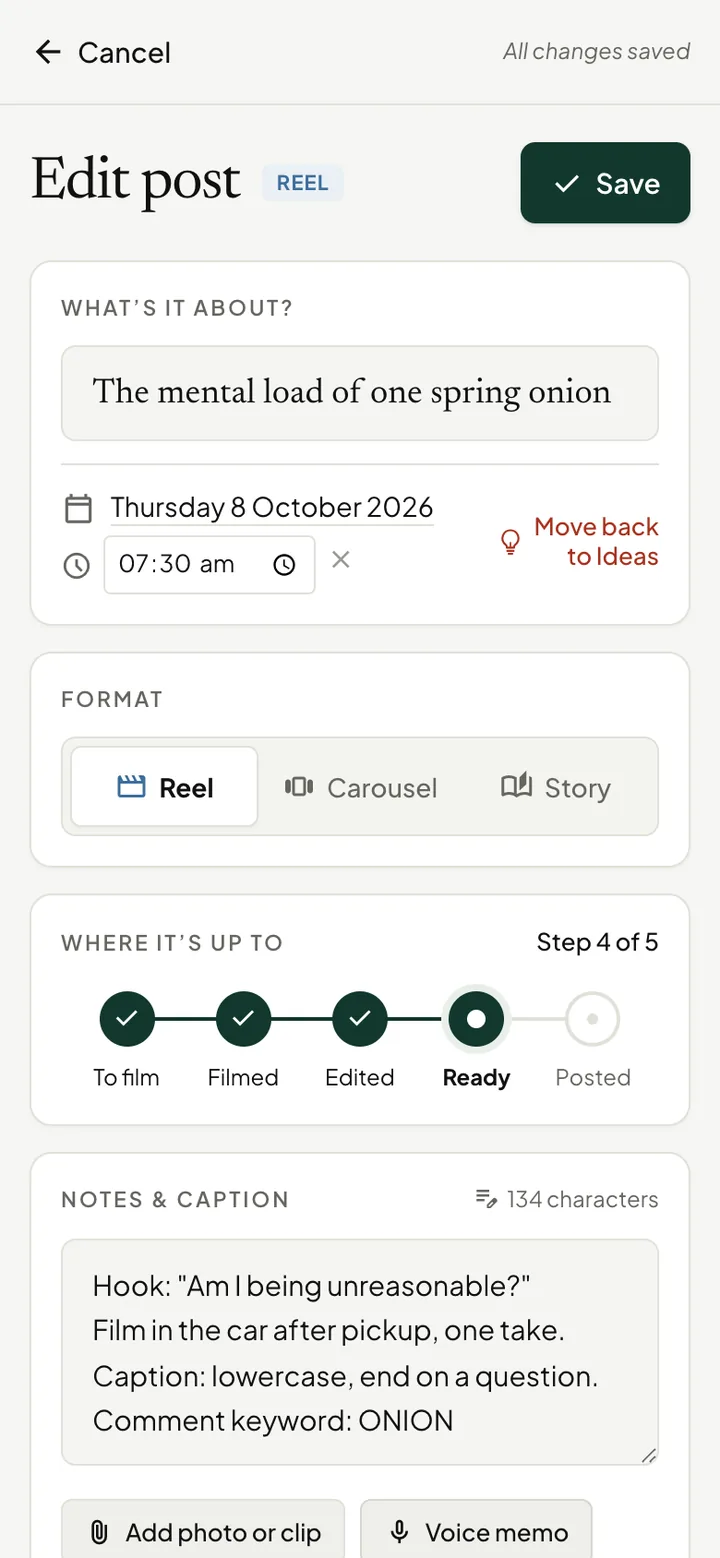
04 / Your post

From a rough thought to ready.

Open any post to work on its title, caption, notes, tags and media in one place.

  • Choose Reel, Carousel or Story and set its date.
  • Add photos, clips or a voice memo alongside your notes.
  • Tap the progress stage that matches where you’re up to.
  • Tap Save when you’re done. If you try to leave with changes, it’ll check with you first.

The Posting Room helps you plan. It doesn’t publish to Instagram for you. Share your finished post there, then mark it Posted here.

Example reel editor with title, progress stages, caption and notes

Where’s it up to?

Five stages. Use what fits.

Skip straight to the stage you need. A story doesn’t need to go through a full filming routine.

  1. To filmStill to make
  2. FilmedCaptured
  3. EditedEditing done
  4. ReadyReady to share
  5. PostedShared by you

A few useful things

Settle in.

Your planner, your settings

Tap Settings in the bottom bar to choose your formats, rest days, week start and tags. Add or change your account photo there too.

Keep it on your phone

On iPhone, add it to your Home Screen from your browser’s Share menu, then open it from the new icon and log in once more. On Android, use Install app or Add to Home Screen. Open the app online first so it can save its offline copy.

Came from Instagram? Open it in your usual browser first, because Instagram’s browser forgets you when it closes. Using a private tab? It forgets you when you close it.

Pick up on another device

Sign in with the same account to see your plans on your phone and computer. Offline changes sync when you reconnect. Give uploads time to finish while you’re online.

Keep a backup

Settings → Back up & restore downloads your posts, ideas, tags and preferences. Photos, clips and voice memos aren’t included in that file.

Your first five minutes

Save an idea. Plan one post.
That’s a good start.

You can come back to this guide from Settings → Help & feedback.

Trying an early version? If something feels confusing or doesn’t work, email Kayleigh with what you were trying to do and the device you’re using.